The Properties tab provides a comprehensive list of all properties linked to the user, along with an overview of all staff members connected to each company or property.

Properties
The properties tab will display a list of each property the user is associated with.
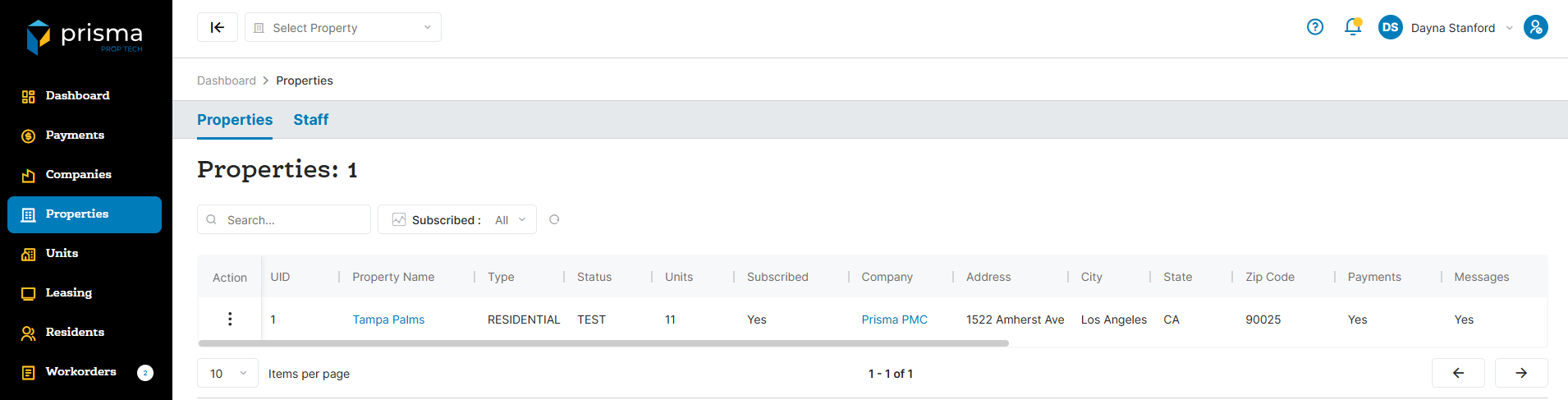
The Properties tab has the following filters available to use:
- Search – Allows you to search by property name
- Subscribed – Allows you to filter if the property is subscribed or not
Table: Properties Column
| Field | Description |
| Action | Allows you to view the property detail listing screen. |
| UID | The unique ID associated with the property |
| Property Name | The name of the property |
| Type | Indicates if it is residential or commerical |
| Status | Indicates if the property is live or not |
| Units | The number of units linked to the property |
| Subscribed | If the property is subscribed or unsubscribed |
| Company | The company name the property is associated with |
| Address | The address for the property |
| City | The city where the property is located |
| State | The state where the property is located |
| Zip Code | The zip code where the property is located |
| Payments | Indicates whether payment processing is enabled for the property |
| Messages | Indicates whether email messaging is enabled for the property |
| Messages SMS | Indicates whether SMS messaging is enabled for the property |
| Workorders | Indicates whether Workorders is enabled for the property |
| Parcels | Indicates whether Parcels is enabled for the property |
| Guest Cards | Indicates whether Guest Cards is enabled for the property |
| Documents | Indicates whether Documents is enabled for the property |
| Guided Inspections | Indicates whether Guided Inspections is enabled for the property |
| Created At | The date and time stamp the property was created in Prisma |
Within the columns, you may click the three dots and hide or show hidden columns to help make your view unique to you.
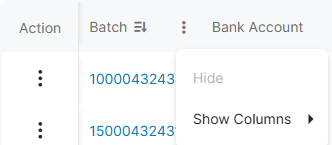
You may also drag and move columns so they are in the order of your preference.
Staff
The properties tab will display a list of each property the user is associated with.
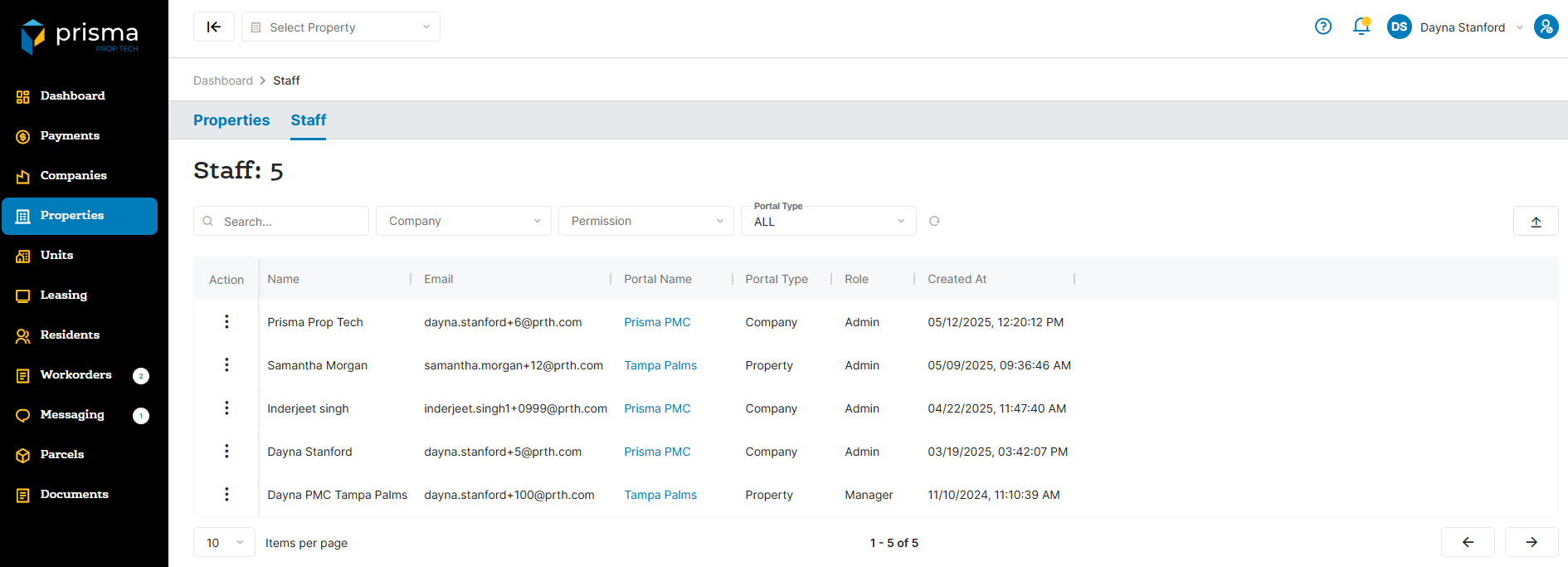
The Staff tab has the following filters available to use:
- Search – Allows you to search by property name
- Comapny – Allows you to filter by company name
- Permission – Allows you to filter by a specific permission name
- Portal Type – Allows you to filter by property user or company user
Table: Staff Column
| Field | Description |
| Action | Allows you to delete the users role |
| Name | The name of the user |
| The email address associated with the user | |
| Portal Name | The company name associated with the user |
| Portal Type | Indicates if it is a company or property level user |
| Role | The role assigned to the user |
| Creatd At | The date and time stamp the user was created in Prisma |
Within the columns, you may click the three dots and hide or show hidden columns to help make your view unique to you.
You may also drag and move columns so they are in the order of your preference.