The left navigation panel is the hub of the Prisma Manager portal. Depending on your company’s settings and the specific property you’re assigned to, your screen may look a little different or some features may not be available to you.
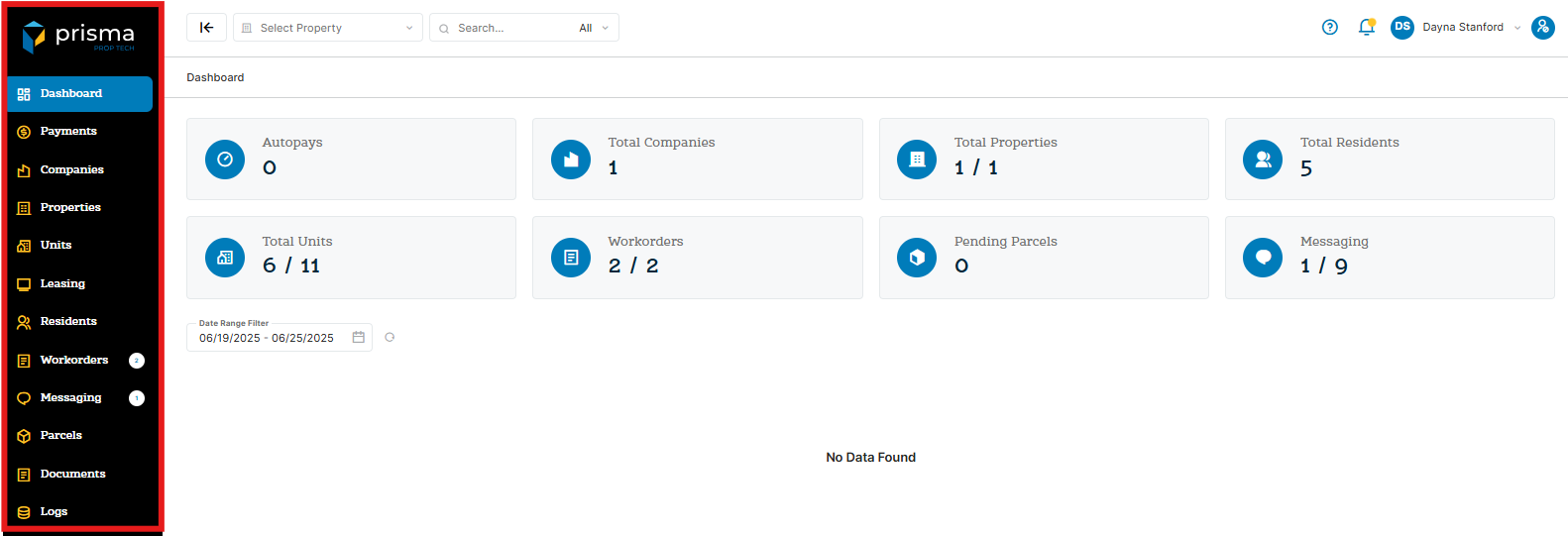
The side bar has the following navigation icons:
- Dashboard – The Dashboard provides a real-time overview, displaying key metrics for Autopays, Properties, Residents, Units, Workorders, and Messaging.
- Payments – The Payments section gives you access to Transactions, Bank Deposits, Autopays, Check Reviews, Check Deposits, Batches, Application Fees, and Post Application Fees.
- Companies – The Companies section gives you access to view and edit all companies you are associated to along with adding suers at the company level.
- Properties – The Propeties section gives you access to view and edit all properties you are associated to along with adding users at the property level.
- Units – The Units sectin gives you access to view all units your property is associated to.
- Leasing – The Leasing section gives you access to view, add or reject guest cards. It also lets you view and manage applications submitted.
- Residents – The Residents section gives you access to view your residents. It serves as a quick navigation tool, were you can access the following features for that resident:
- Lease Detail – View the lease details along with residents associated to that lease, transactions, workoders, parcels and documents.
- Impersonate – Allows you to impersonate the resident and view their portal.
- Send Invite – Allows you to nvite the resident to register for the Resident Portal.
- Register – Allws you to self register the resident in the event they are facing issues.
- Compose A Message – Allows you to email or text the resident.
- Add Document – Allows you to add a document and choose if you want it to display in the Resident Portal.
- Add Parcel – Allows you to notify the resident a package is waiting for them to pick up.
- Add Workorder – Allows you to add a workorder on behalf of the resident.
- Payment History – Allows you to view the payment history for that resident.
- Edit Profile – Allows you to modify the profile, such as adding an email address.
- Workorders – The Workorders section allows you to view all workorders, add and manage all workorders for your property.
- Messaging – The Messaging section allows you to view or compose messages to multiple residents.
- Parcels – The Parcel section allows you to view or add a parcel.
- Documents – The Documents section allows you to view all documents created or add a new one.
- Logs – The Logs section allows you to view all emails sent from Prisma’s system.
The top navigation bar allows you to quickly filter by a specific property, if you manage more than one, quickly search with Prisma, access the knowledge base and manage your profile.
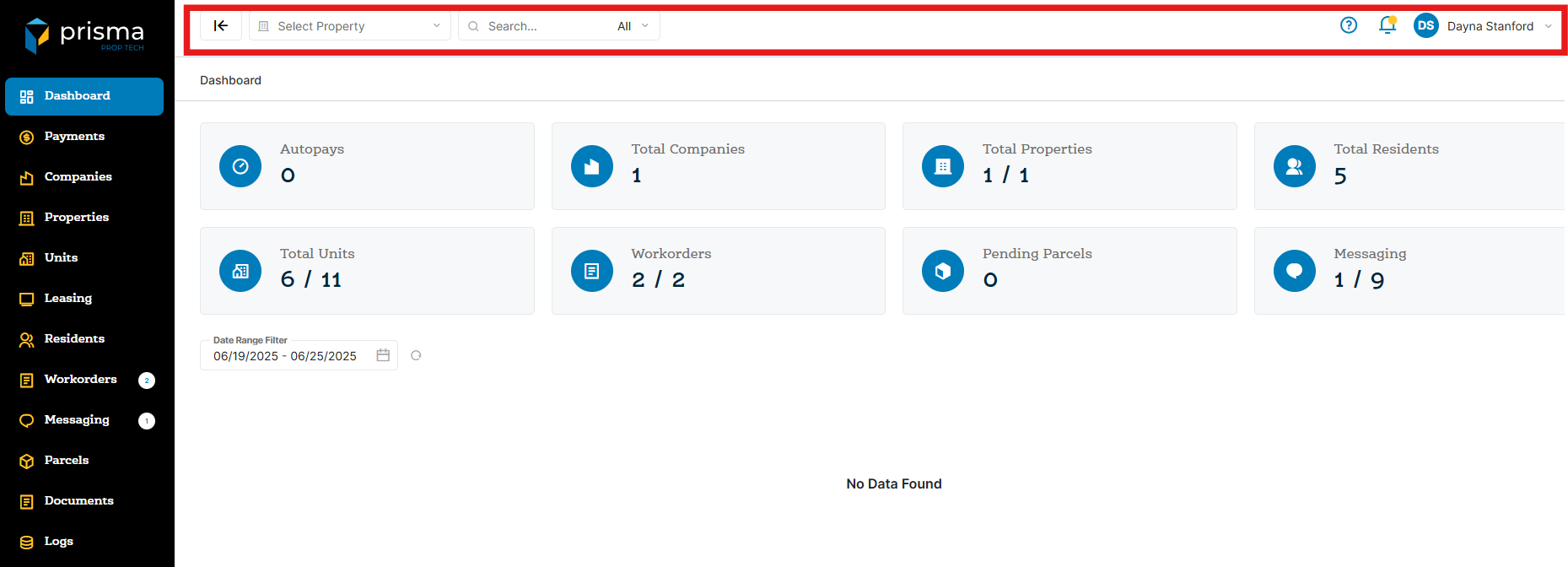
The top bar has the following navigation icons:
- Select Property – Allows you filter by a specific property when navigating within Prisma.
- Search – Allows you to quickly search within Prisma. You can search all or isolate to companies, properties, units, residents, workorders and transactions.
- Help Icon – Allows you to access the Prisma Knowledge Base.
- Notifications– Allows you to view and manage all your notifications from Prisma.
- Profile – Allows you to edit your profile, change your password and manage email notifications.