Skip to content
Option 1: Check Notes in Lease Details
- In your Prisma account, navigate to ‘Residents’ on the left hand side
- Once you locate the resident, click the lease number to open the lease detail page.
- Scroll down to the “Notes” section.
- You will see automated system notes along with date and time stamps that include the reason AutoPay did not run.
- These notes are generated automatically at the time AutoPay attempts to process.
Option 2: Check Resident Email Logs
- In your Prisma account, navigate to ‘Logs’ on the left hand side
- Under “Email Logs”, use the following filters:
- Resident Email Address
- Subject: Search for “Autopay error”
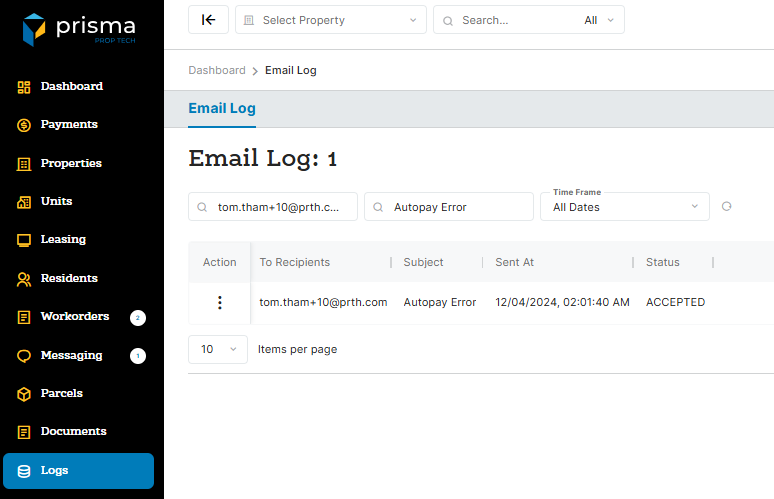
- Locate the relevant log. Click the three dots and click the “View”
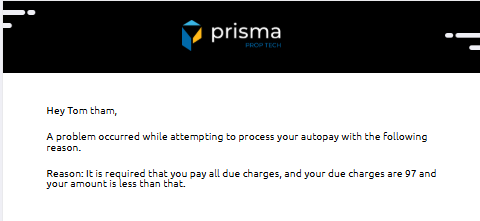
- In the “Reason” section of the email, you’ll be able to view the specific error.