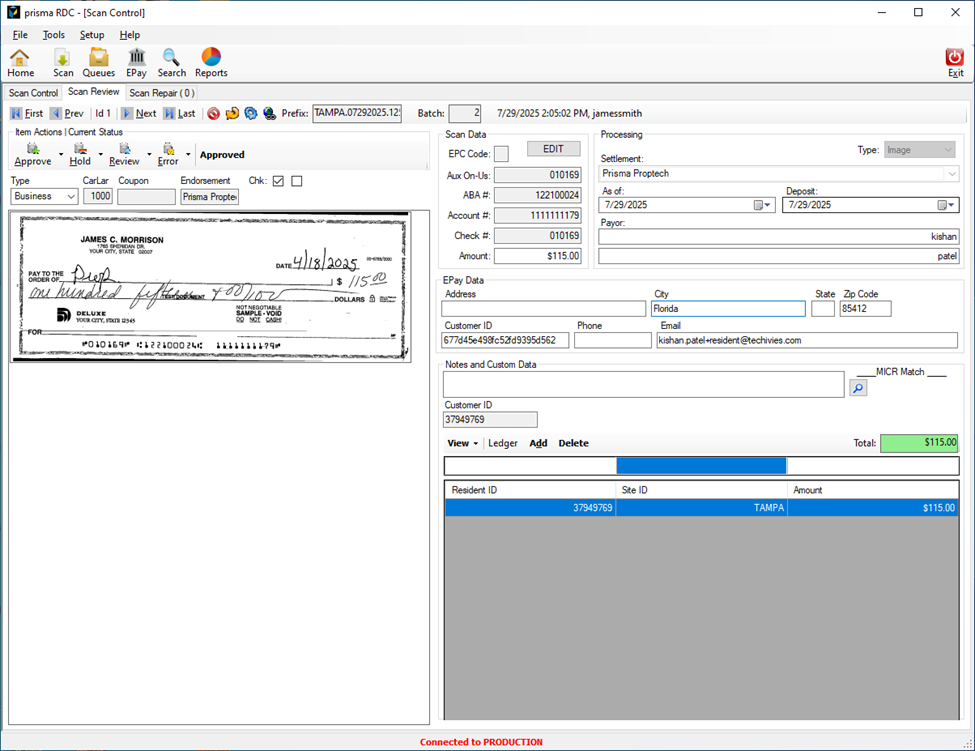
Here are frequent issues encountered in Prisma RDC scanning software, along with recommended solutions:
| Invalid ABA# |
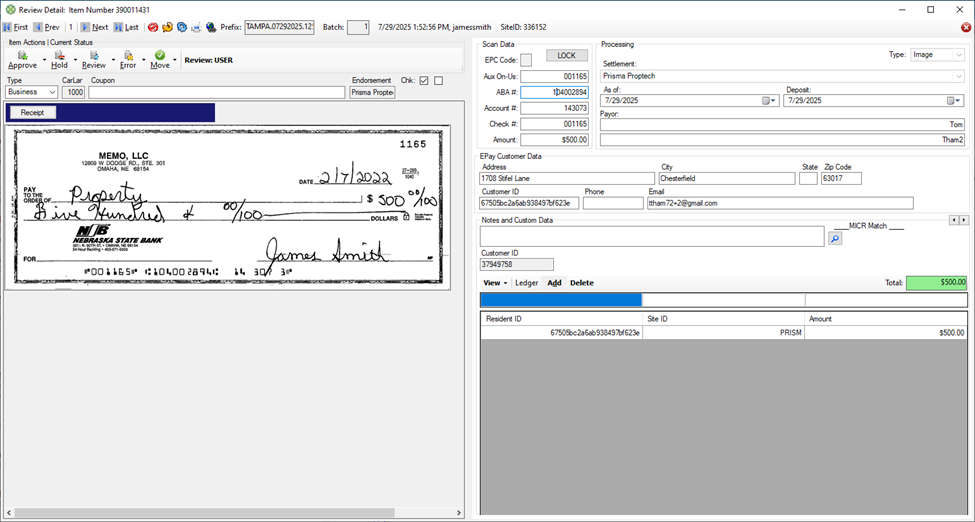
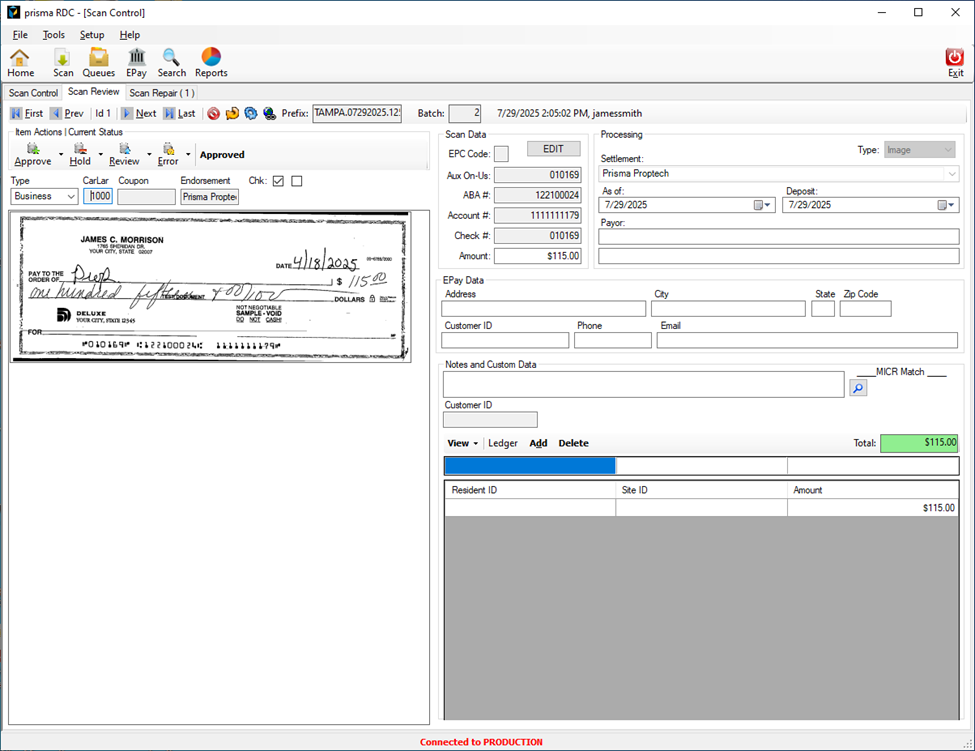
Click the Edit Button. Correct the ABA # field in the Scan Data area and click Approve.
|
|
Duplicate Micr Error
|
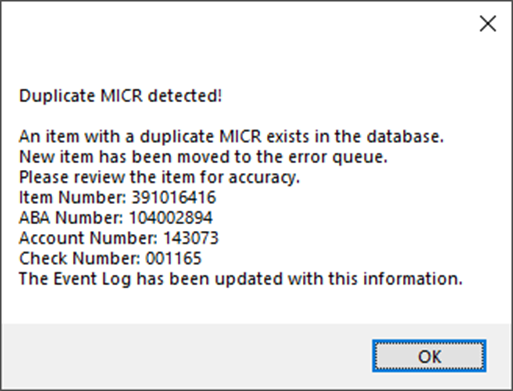
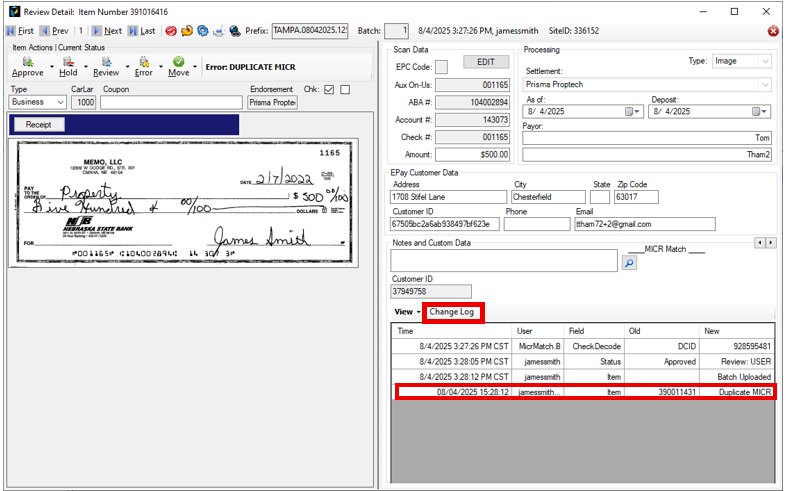
Click OK. The item will be uploaded to the error queue. Find the item in the queue and open the Review Detail view. Then, click on the View button above the ledger row and select Change Log.
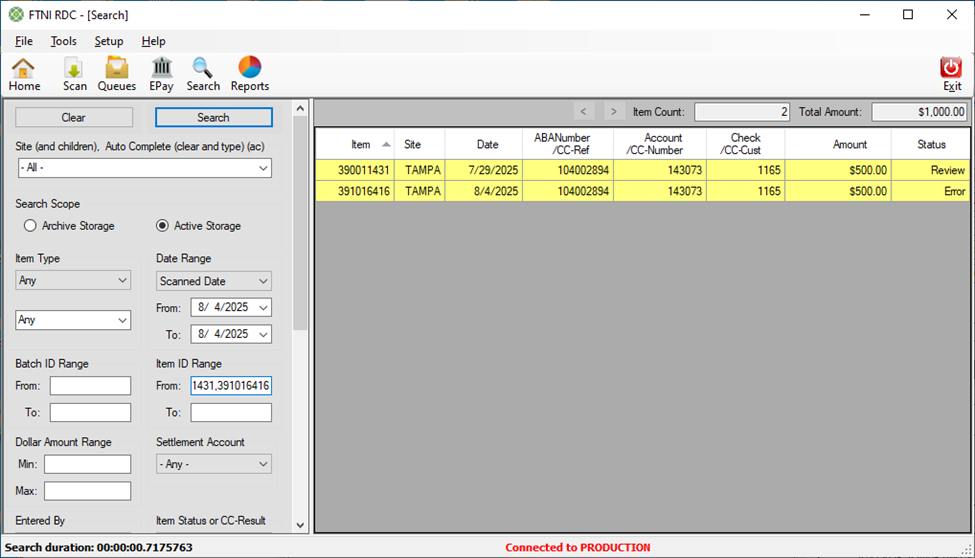
The duplicate item number (previously processed check) will be listed under OLD next to Duplicate Micr in the change log. Go to search and input the current item number and the older duplicate item number and compare the two.
If it is a duplicate and one of the checks already transmitted to the bank, discard the item in the error queue. If it is a false positive, the user may change the check number slightly so that it is not recognized as a duplicate and approve the item. |
|
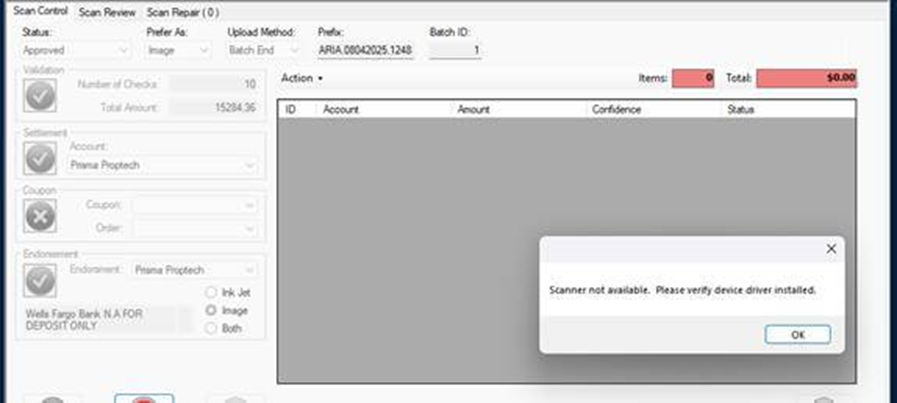
The user clicks Scan and receives an error that says the scanner is not available.
|
|
|
Uploading an item with no Ledger Row or Amount in the ledger row entered or Ledger Out Of Balance
|
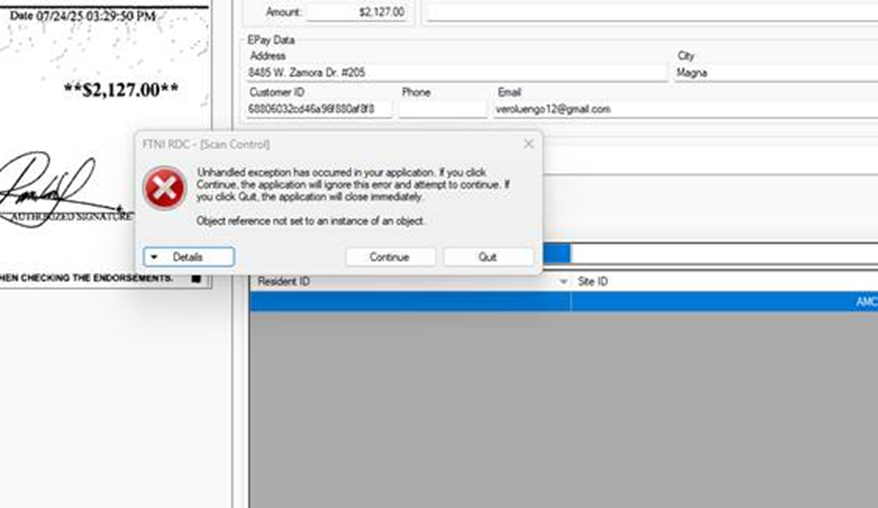
Click Continue and follow the steps, below:
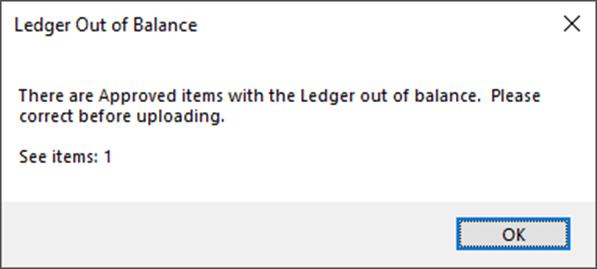
The ledger out of balance error indicates a similar issue. Either there is no ledger row as in the example above or the amount in the ledger row doesn’t match the amount of the check being applied.
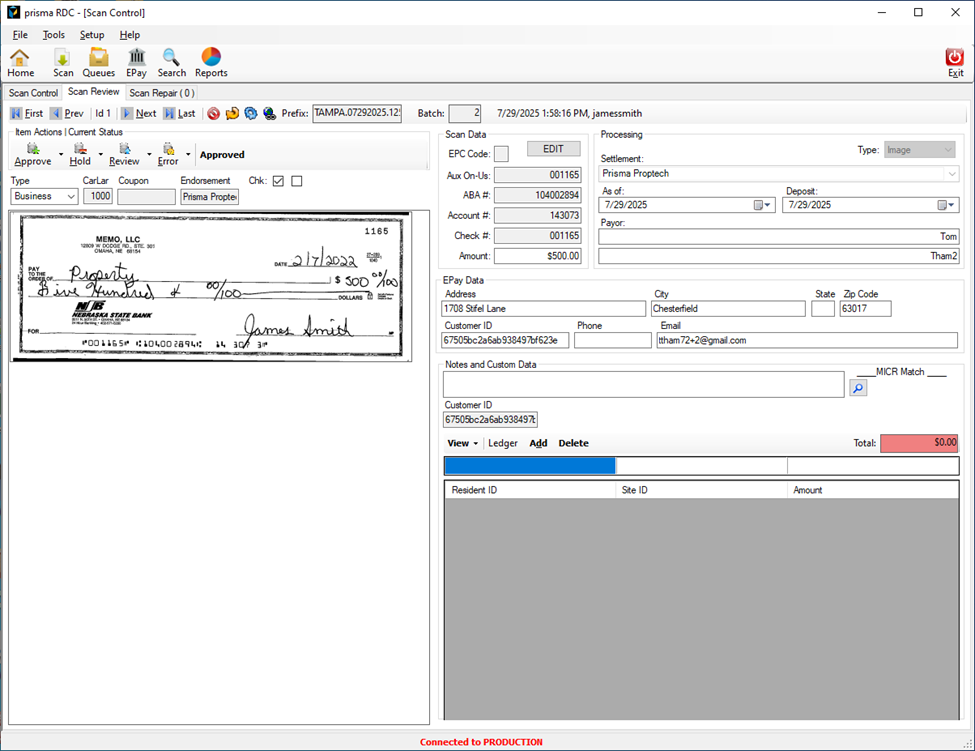
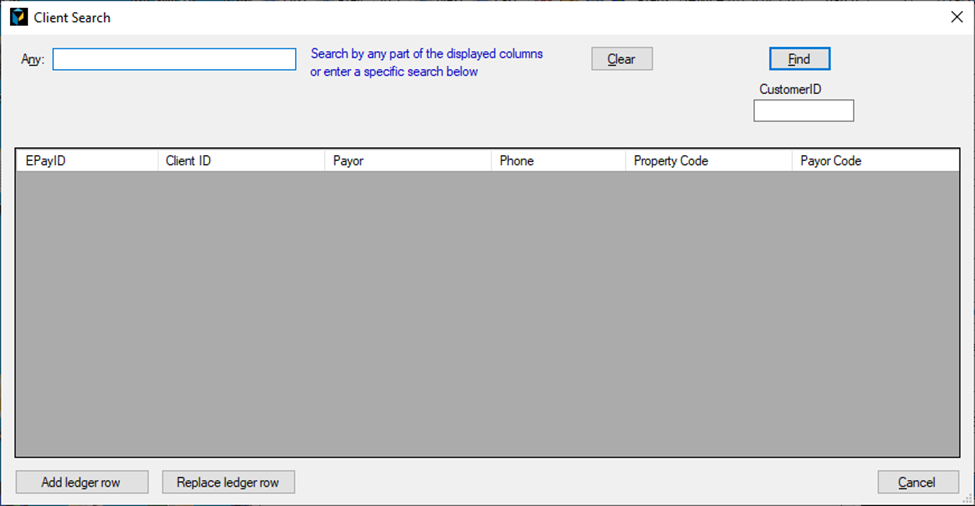
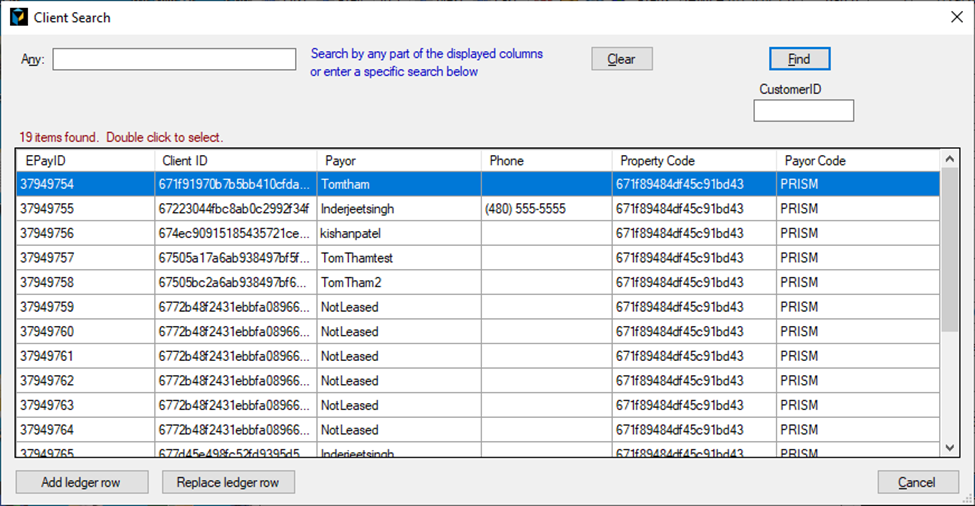
Link the payment to a Resident ID and apply the correct amount in the Ledger area. Click the magnifying glass to find a Resident ID. Enter the ID or resident name and Click Find. If you don’t know it, click Find with no data entered.
Highlight the resident and click “Add Ledger Row”.
The ledger total will appear in a green box when it matches the check amount. Then, go to Scan Control and Click “Upload”. |
|
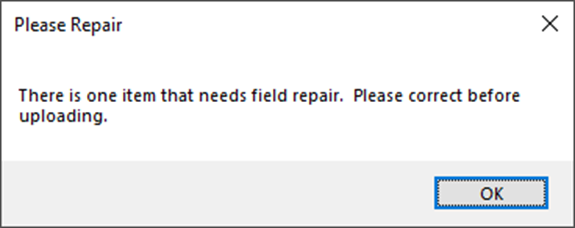
Please Repair – An item is scanned with the amount but there is no Resident associated with it when the user attempts to upload it.
|
Click Ok
To correct this, click the magnifying glass on the right, and enter the Client ID or Name and click Find. Or, click find and scroll to the resident. Highlight the resident and click “Add Ledger Row”.
Click on Scan Review tab. Verify that the ledger row is complete and upload the item.
|