Application Fees

The Application Fees tab will display all payments submitted durinig the application process.
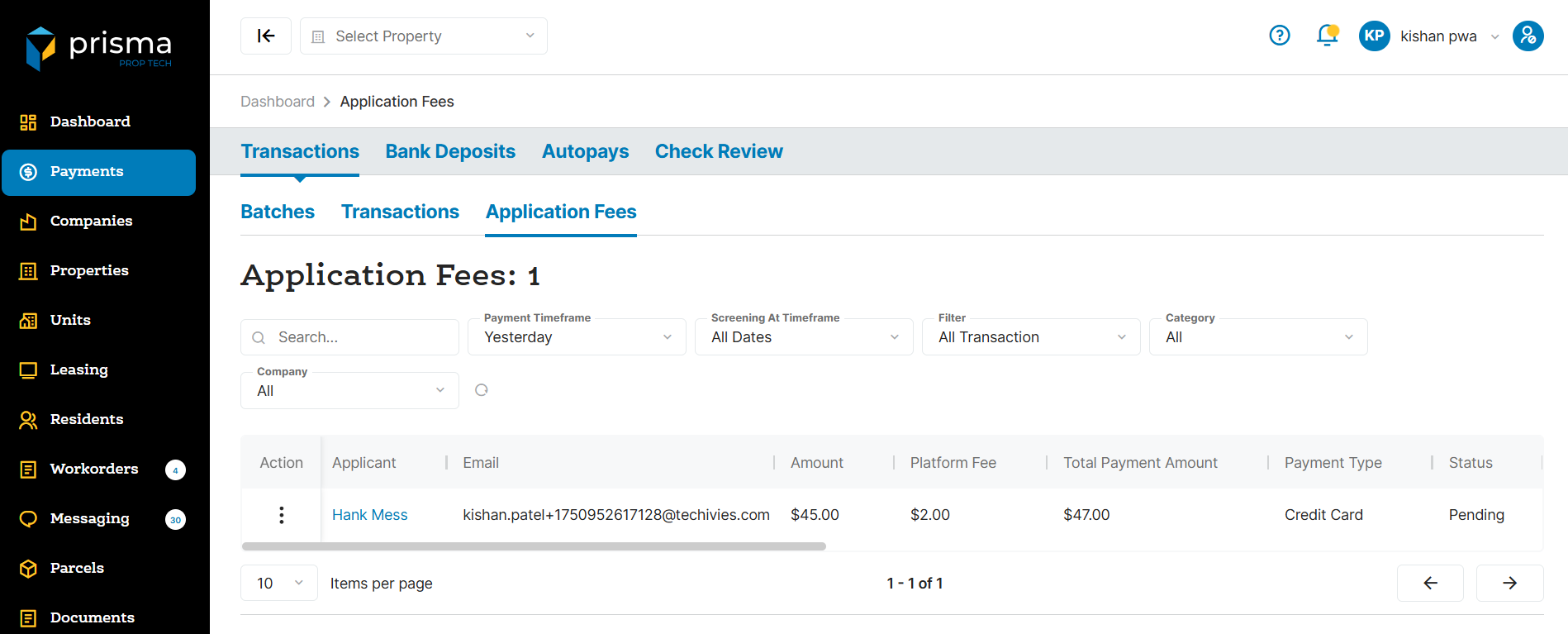
The Application Fees tab has the following filters available to use:
- Search – Allows you to search by auth id or amount.
- Payment Timeframe – Allows you to filter by the date the application fee was created.
- Screening At Timeframe – Allows you to filter by the date the application was submitted to the screening company.
- Filter – Allows you to filter all application fees or just those that were returned or had a chargeback.
- Category – Allows you to filter by payments submitted via CARD or ACH.
Table: Application Fees Column
| Field | Description |
| Action | Allows you to view the transaction detail. You can also fetch the updated status, view or download the receipt or email the receipt |
| Applicant | The name of the applicant |
| The email address of the applicant | |
| Amount | The total payment amount, not including the platform fee |
| Platform Fee | The platform fee amount charged |
| Total Payment Amount | The payment amount plus the fee amount |
| Payment Type | The payment type: Checking, Cash, Credit Card, Debit Card |
| Status | The status of the payment |
| Auth Code | The unique authorization code associsted to the payment processed in Prisma |
| Screening Status | The status of the screening |
| Screening Bundle ID | The bundle ID associated to the screening package |
| Screening Bundle Products | The list of items being screened |
| Unit No | The unit associated to the payment |
| Property | The property name for which the batch is associated with |
| Company | The company name for which the batch is associated with |
| Screening At | The date and time stamp the screening was initiated |
| Payment Date | The date and time stamp the payment was initiated |
Within the columns, you may click the three dots and hide or show hidden columns to help make your view unique to you.
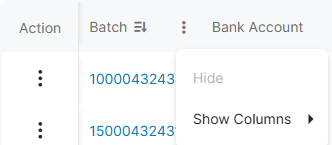
You may also drag and move columns so they are in the order of your preference.