The Residents tab will display the list of units associated with the users account.
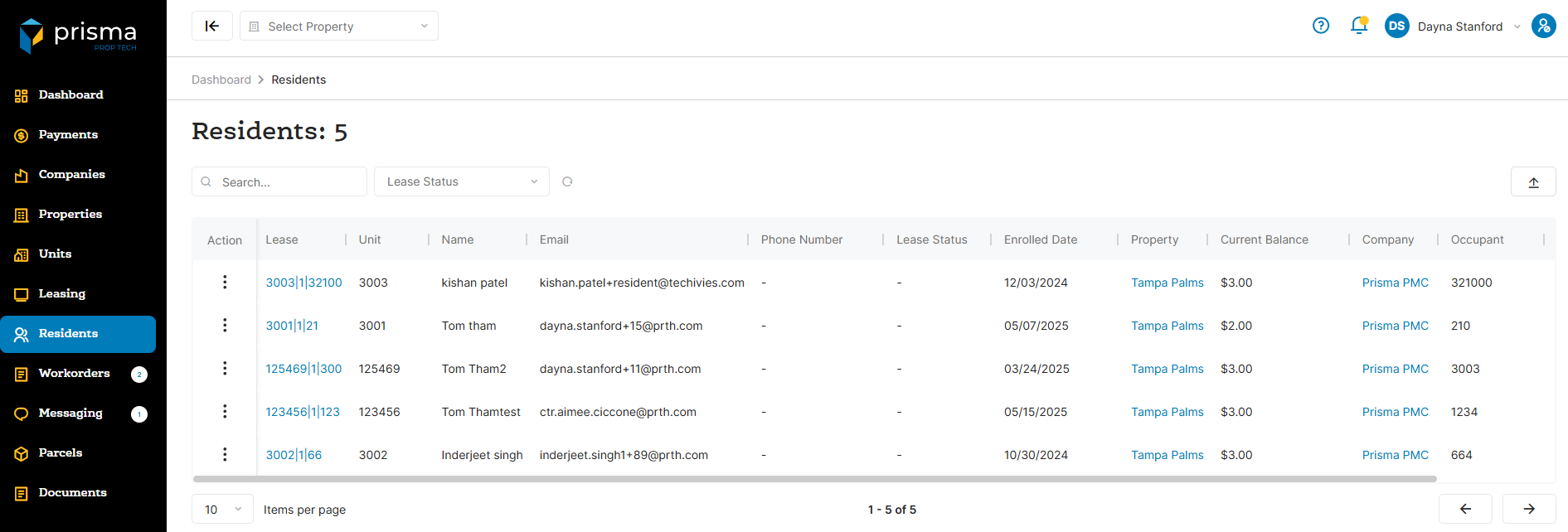
The Residents tab has the following filters available to use:
- Search – Allows you to search by lease ID, unit, name or email address.
- Lease Status – Allows you to filter by lease status.
- Export – Allows you to export the list of residents.
Table: Units Column
| Field | Description |
| Action |
The action button allows you to perform the following actions:
Your permission settings may determine which features are accessible to you. |
| Lease | The lease ID associated with the resident |
| Unit | The unit associated with the resident |
| Name | The name of the resident |
| The resident’s primary email address on file | |
| Phone Number | The resident’s primary contact phone number on record |
| Lease Status | The resident’s lease status |
| Enrolled Date | The date the resident enrolled in the Prisma Resident Portal |
| Property | The name of the property linked to the resident’s lease |
| Current Balance | The resident’s current balance |
| Company | The company name linked with the account |
| Occupant | The occupant ID associated with the resident |
| Social Account | Indicates whether the resident has activated a third party account for login access |
Within the columns, you may click the three dots and hide or show hidden columns to help make your view unique to you.
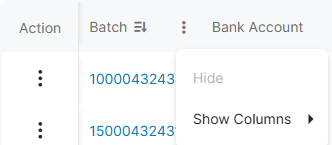
You may also drag and move columns so they are in the order of your preference.
View lease details
The View Lease section provides access to review and manage all details of the resident’s lease.
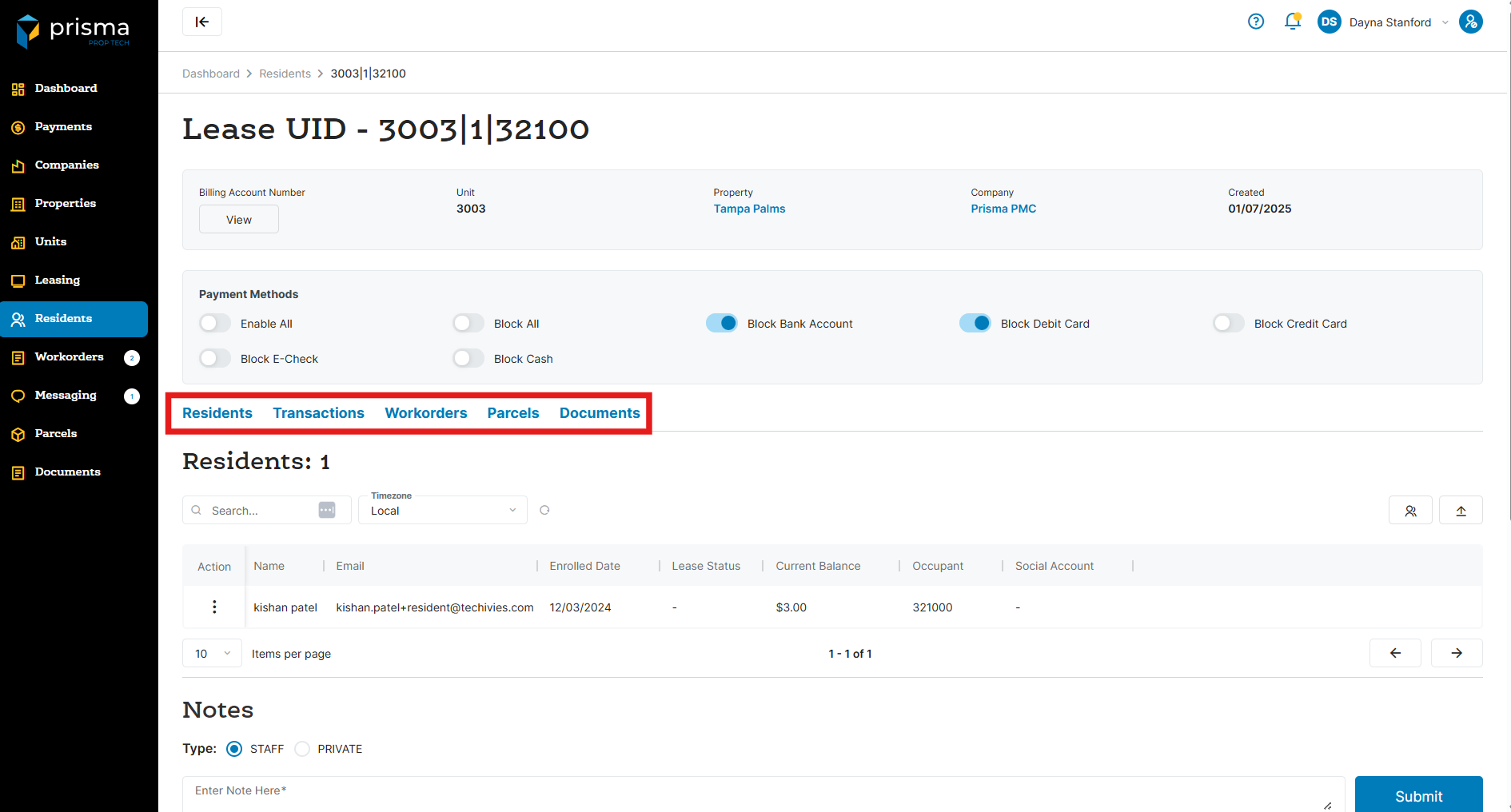
The top bar has the following navigation tabs:
- Residents – The Residents tab displays all residents associated with the selected lease.
- Transactions – The Transaction tab displays all payments associated with the selected lease.
- Workorders – The Workoders tab displays all workorders associated wtih the selected lease.
- Parcels – The Parcels tab displays all parcels assoicated with the selected lease.
- Documents – The Documents tab displays all documents associated wtih the selected lease.
The Payment Methods section allows you to manage which payment options are enabled for the lease. For best results, update your PMS system first—this ensures any changes you make in Prisma remain in effect during future PMS syncs.

Impersonate
If the resident has registered for their Prisma account, Impersonate lets you access the resident’s portal in their view, enabling you to assist with troubleshooting or navigation questions.
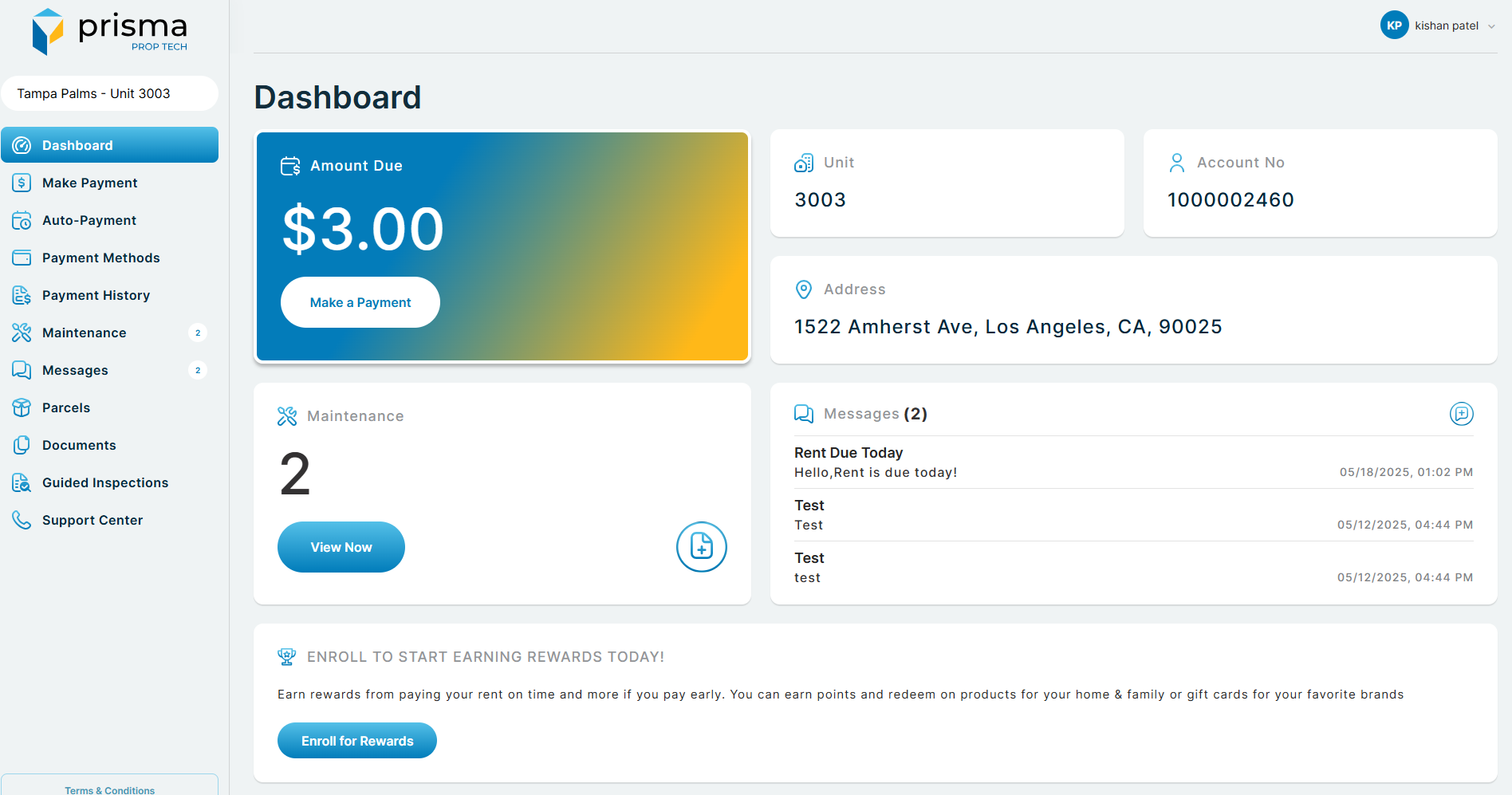
To end impersonation, simply close the browser tab.
Register
The Register feature enables you to assist residents who are unable to complete the registration process on their own.

You can enter the resident’s email address and set a temporary password for their initial login. Be sure to remind the resident to update their password after signing in for added security.
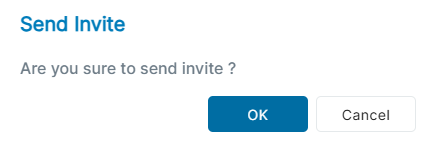
Send Invite
If the resident has an email address on file, you can send an invitation enabling them to register for the Prisma Resident Portal.
Compose A Message
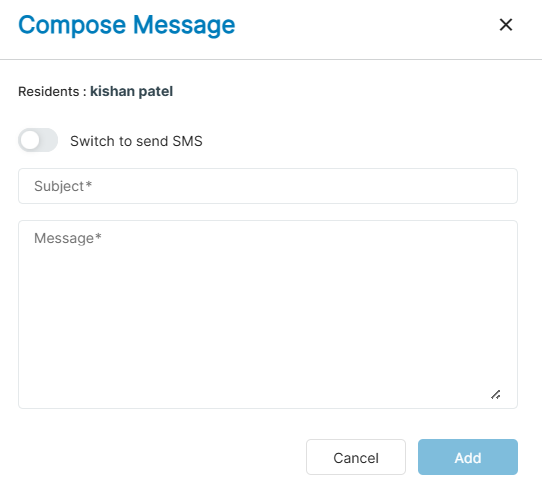
The Compose Message feature enables you to communicate directly with the resident via email or SMS, if your account supports messaging.
For emails, enter a subject and a message up to 500 characters. After the message is sent, the resident will receive it by email and it will also be accessible in the resident portal.
To send an SMS, switch on “Send SMS” and type your message. After the message is sent, the resident will receive it by text and it will also be accessible in the resident portal.
Add Document
The Add Document feature allows you to upload documents related to the resident directly in Prisma. You can also choose whether the document should be visible in the resident portal.
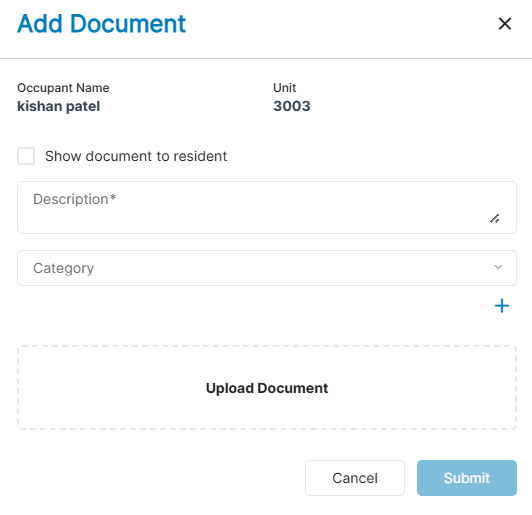
To upload a document, enter a description, select the appropriate category, and attach the file. To make the document viewable in the resident portal, check the “Show document to resident” box.
Add Parcel
The Add Parcel feature enables you to notify a resident when a package has been received at the office and is ready for pickup.
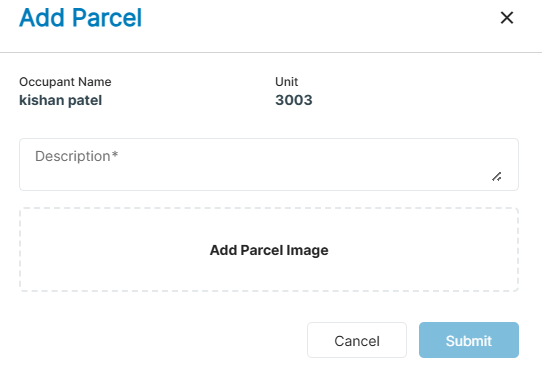
To add a parcel, enter a description and upload an image if needed. The resident will be notified through their resident portal, and if notifications are enabled, they’ll also receive an email alert.
Add Workorder
The Add Workorder feature enables you to submit a maintenance request on behalf of the resident.
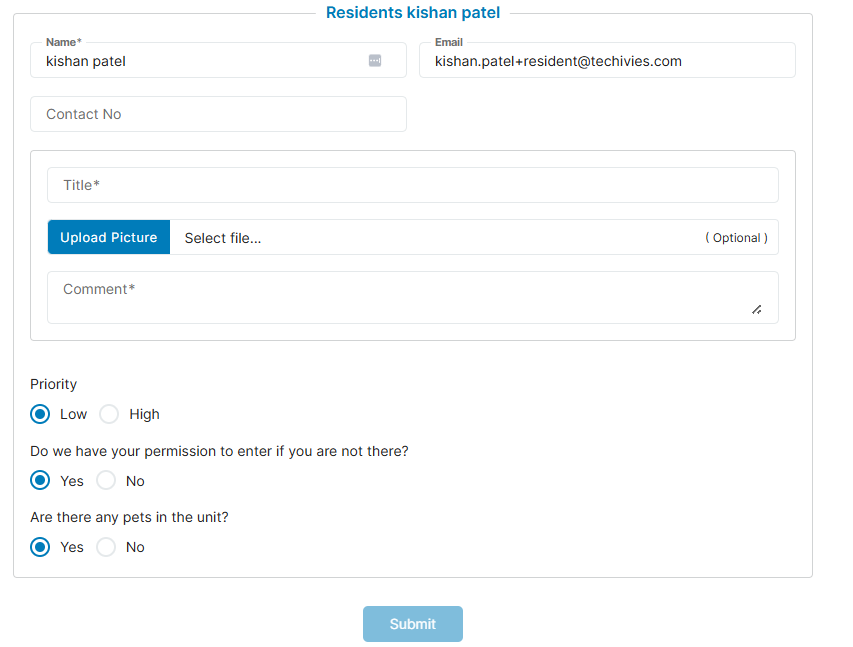
To submit a work order, fill out all required fields on the form and click Submit. The request will be visible in the resident portal and if integrated, the workoder will sync to your PMS system.
View Payment History
The View Payment History feature directs you to the transactions tab, filtered for that resident, allowing you to review their complete payment history.
Edit Profile
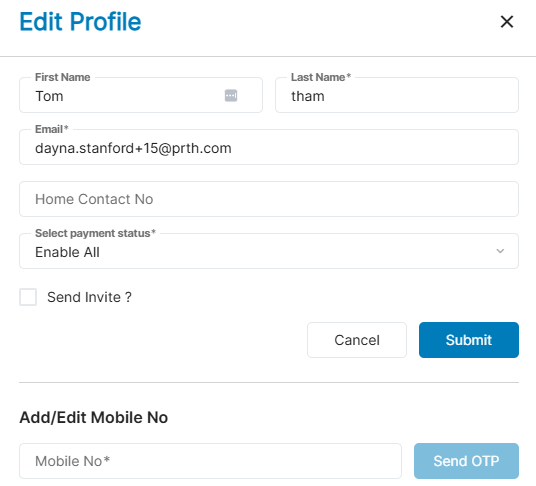
The Edit Profile feature lets you update the resident’s name, email address, contact number, or mobile phone number. When adding a mobile number, a one-time passcode (OTP) will be sent via text for verification before the number is saved.
You can also adjust payment methods for an individual resident instead of the entire lease.. For best results, update your PMS system first—this ensures any changes you make in Prisma remain in effect during future PMS syncs.